


The Internet’s greatest asset – that it is instant and without borders – also happens to be a real pain for website developers. If you make a change on a site, it becomes live as soon as you push the button.
That isn’t much of an issue if you are editing a post or doing something similarly low-key – the “Preview” feature in WordPress takes care of that. But if you are making changes to your design, doing any kind of substantial editing, or in fact building a site from scratch, you have a bit of a problem.
A lot of website owners and designers get around this by working on their WordPress sites “offline”. If you do not do this, there is a great guide available here (please note that this is for Windows users). But there is just one problem with this method – moving your completed masterpiece online.
ManageWP’s clone feature would be perfect for transferring your finished articles onto a “live” site. But as standard, ManageWP cannot “see” your offline (localhost) site, and as such, you cannot add it to your dashboard. Fortunately, there is a way around this – port forwarding.
Update (2018)
With a launch of our new Local Sync feature, ManageWP now can push the website changes between localhost and live environments with one click. No port forwarding or desktop apps needed!
Port What?
The concept is actually very simple. Everything you send and receive on the internet travels via your router – it is essentially the “gateway” between your PC and the internet. It decides, in part, what has access to your computer, and what doesn’t.
Requests for information are made via “ports”. Picture ships docking, with cargo being loaded and unloaded, and you have the right idea.
In order to easily transfer and clone your “offline” site with ManageWP, we need to make it visible from the internet using port forwarding.
Step 1 – Find Your Local IP Address
You find houses by their addresses, and you find computers by their IP addresses. It is basically the same principle. In order for us to expose your “offline” site to the internet, we need to point whoever requests to see it in the right direction.
There are two different “flavors” of IP address – local and global. Global IP addresses are unique and accessible to all. Local IP addresses are assigned to computers within a local network (for instance, your router will have assigned a local IP address to your computer). In order for your “offline” site to go online, we need to reveal your local IP address so that it can be found.
The first step in doing this is to ascertain what your local IP address is.
On Linux
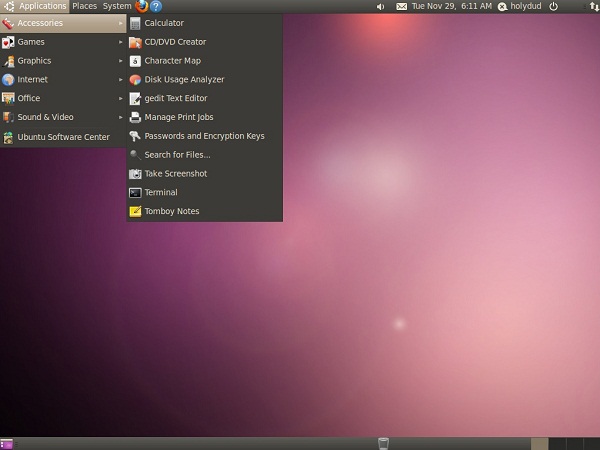
Open Terminal:
Run ifconfig command:
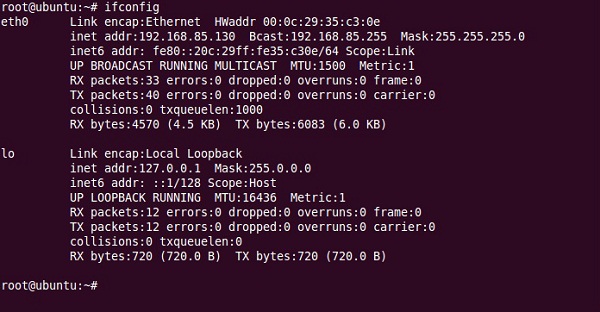
In the above example, the IP address is on the 3rd line: 192.168.85.130.
In Windows 7
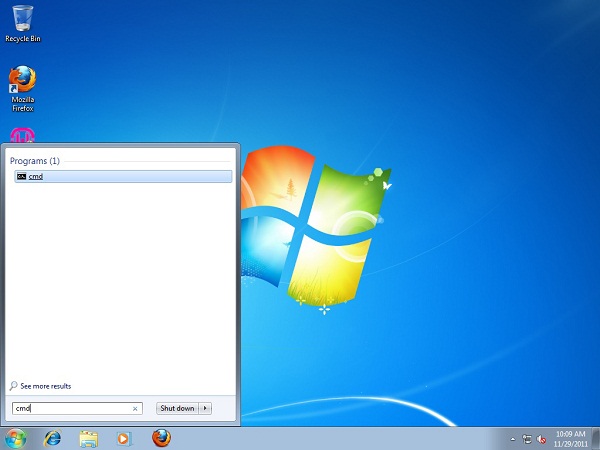
Click “Start”, type “cmd” into the search box and press enter.
Once you have the command prompt in front of you, type “ipconfig /all”:
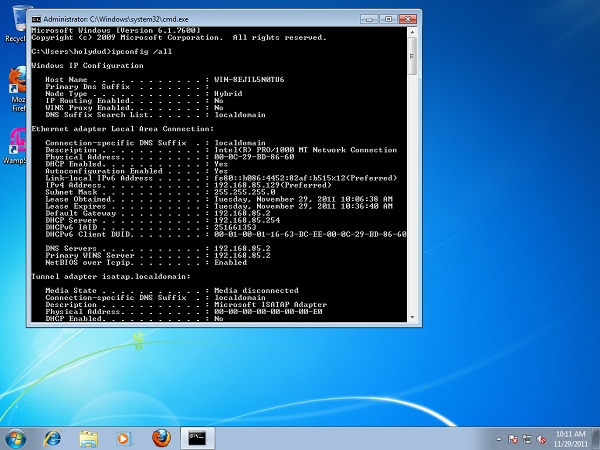
Scroll down until you find the IPv4 Address:
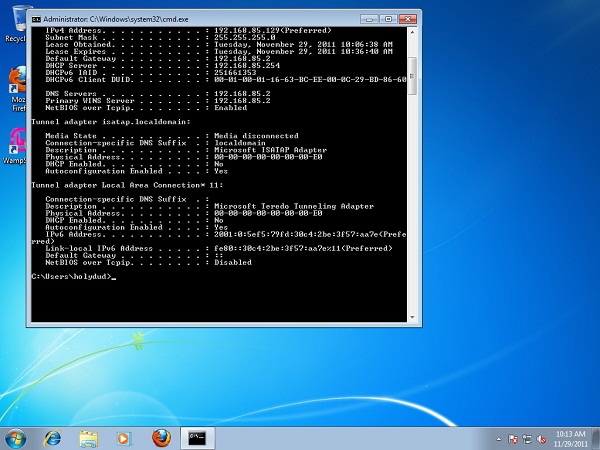
Above you can see the IP address for the computer: 192.168.85.129.
On Mac
Open Terminal:
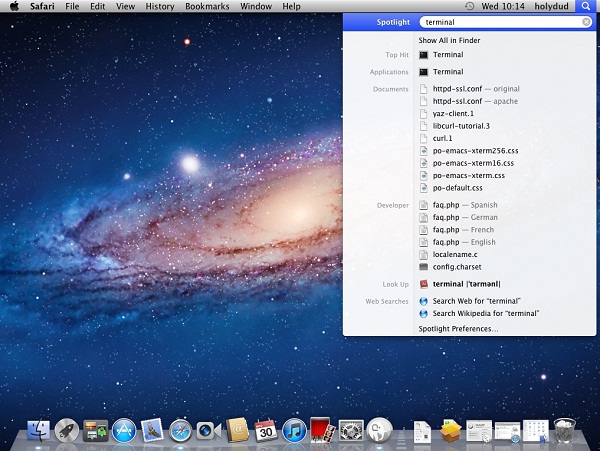
Run ifconfig:
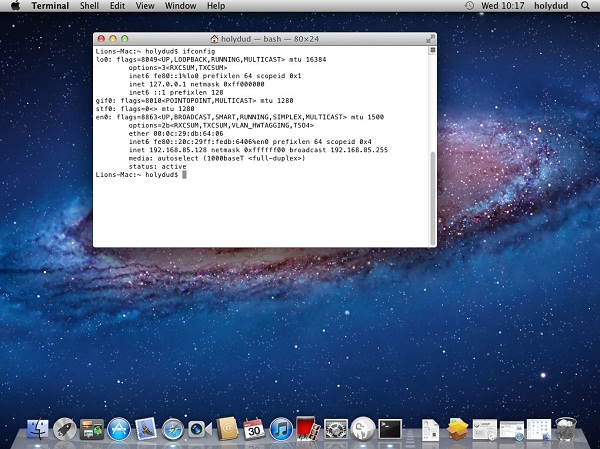
From the information above, we can see that the computer’s IP address is 192.168.85.128.
Step 2 – Forward Your IP Address
Going back to the concept of port forwarding, here is what we know – internet browsers typically try to access web servers via port 80. So when ManageWP tries to connect to a website, the attempt will typically be made via that port. As such, we need to tell the router to redirect requests via that port to your computer’s local IP address.
This is where the process can get complicated, because there are literally hundreds of router brands with different user interfaces. Luckily for us, there is an enormously comprehensive guide to port forwarding here.
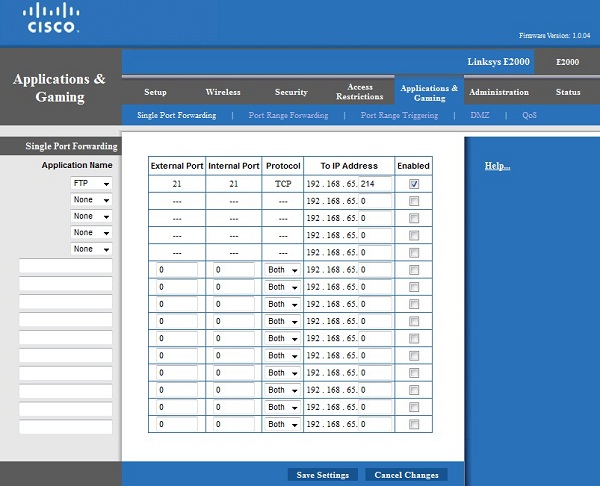
Due to the common issues that may occur best practice is that you forward some other port rather that port 80. Because port 80 could be used depending on your ISP equipment, for remote web management of router, or its used by some other program such as Skype. This guide will show you how can you do this under Windows and with XAMPP.
When this is complete, next step is to find your external IP address. Just visit the site: showip.net.
Now you are good to go. Add your site to ManageWP in format: http:// MyExternalIPAddress : PortNumber then clone to your heart’s content (follow the instructions in this video if you are not sure how).
Creative Commons image courtesy of John Morgan


Leave a Reply